
Network Analyzer Pro
Jiri TechetTools
4.92.57K Reviews
- Version
- 5.1
- Installs
- 100.00K
- Age Rating
- Everyone
Screenshots
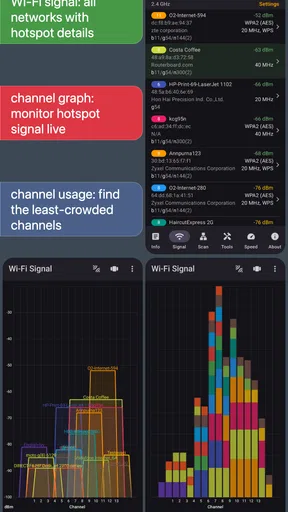
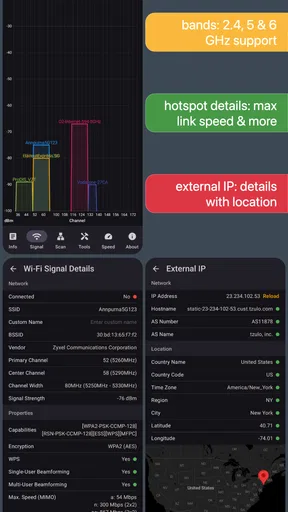
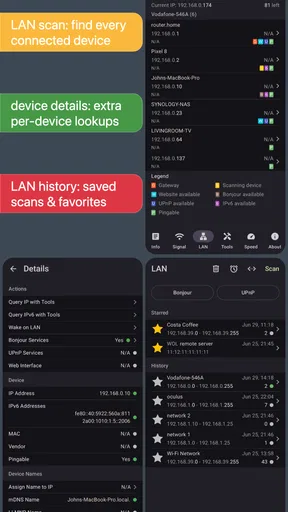
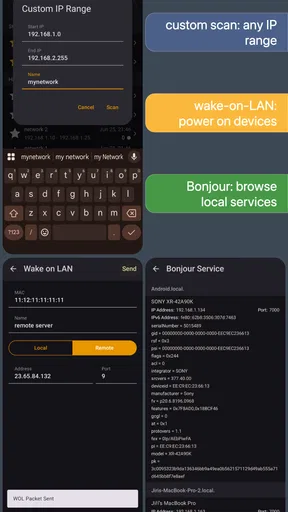
Our Review of Network Analyzer Pro
 Analysis by Appyee
When the Wi-Fi slows down, the frustrating part is often not knowing where to start. Is the problem the phone, the router, or the internet connection itself? I find Network Analyzer Pro useful because it puts several network checks in one place, so I can investigate before resorting to guesswork or restarting everything in sight.
This is a paid Tools app from developer Jiri Techet, currently priced at $3.99. It has a 4.9 average from around 19,000 ratings, with over 100,000 installs. Those figures suggest a well-liked utility, but the more important question is whether its collection of diagnostic tools fits the way you actually troubleshoot. I think it is best for people who want more than a one-tap speed test, while casual users may be happier with simpler options.
From a vague connection problem to a useful first check
I like to begin with one clear question instead of running every test at once: is the trouble limited to this room, or does the connection feel poor everywhere? That distinction helps me choose a useful comparison and avoid chasing unrelated readings. Next, I’ll look at how to make a first check informative without turning setup into a project.
Getting started without turning setup into a project
First things first, downloading Network Analyzer Pro was a breeze. A quick hop over to the App Store or Google Play, and I was good to go. The interface is super intuitive, which is a big plus for those of us who aren’t exactly tech wizards. The app opens up with a pretty straightforward dashboard, displaying all the necessary tools you need to dive into your network diagnostics.
That dashboard is most helpful when I have a specific question in mind rather than when I expect the app to solve everything automatically. I’d start with one check, note what it says, then move to another only if the first result leaves the cause unclear. For example, a speed result tells me about the connection at that moment; checking network details or nearby connected devices can help me think about the local setup instead. Treating each tool as a clue keeps the information manageable.
The app is rated for Everyone, and it runs on operating systems from version 9 onward. Its current version is 4.2. That makes it approachable as a general phone utility, though some of the terms it presents—such as IP, DNS, ping, and ports—are still technical. I wouldn’t expect the app to teach networking from scratch; a little curiosity and patience make the results much more useful.
What the checks are good for in practice
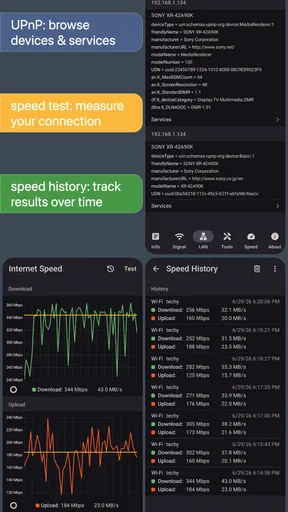
Now, onto the juicy stuff! One of the standout features is the real-time monitoring. Whether you’re checking Wi-Fi speed or ping, everything updates right before your eyes. It's like having a mini control center in your pocket. I absolutely loved the speed test feature which gives you detailed insights into both download and upload speeds. No more guessing games there!
A practical tip is to run a speed check more than once when a result seems surprising. Network performance can vary with location and whatever else is happening on the connection, so a single number is a snapshot, not a promise about what you’ll get all day. I’d compare results from the same spot before and after moving closer to the router, and avoid treating a test as a definitive diagnosis of the internet provider’s service.
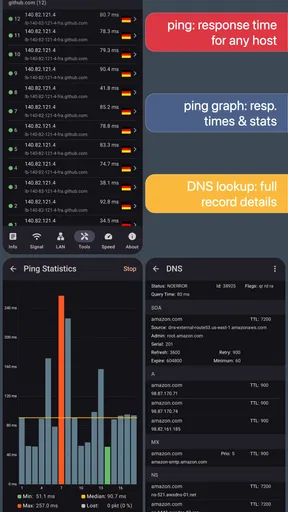
Ping is useful for a different reason than download speed. If a video call feels delayed or an online game responds inconsistently, responsiveness may matter more than how quickly a large file downloads. Looking at these checks separately helps me avoid the common mistake of assuming that a high download result means every kind of network activity should feel smooth.
Another neat feature is the IP address and DNS lookup. With just a tap, you can uncover all sorts of info about your network. It's a bit like being a detective, and who doesn’t love that? Plus, the app includes an impressive range of utilities like LAN scanner and port scanner that give you detailed information about your connected devices.
The LAN scanner is most valuable when I’m trying to make sense of what is on a home network, not when I’m casually browsing. I’d use it after connecting a new device or when a device I expect to see appears unavailable, then compare the scan’s findings with what I know is switched on. A scanner can make unfamiliar entries easier to investigate, but it doesn’t identify every device in a way that removes the need for judgment. Names and addresses may need to be matched against the equipment you recognize.
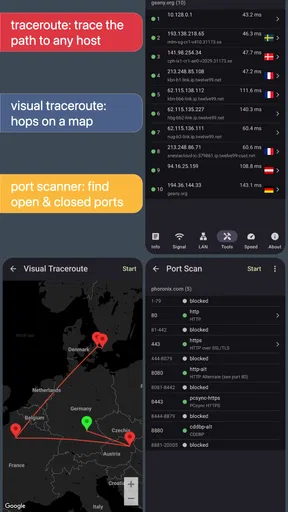
Port scanning has a narrower audience. It can help someone who already understands why they are checking ports, but unfamiliar results can be easy to misread. I’d use it to investigate a specific connection or device rather than as a general “security check.” A scan is information, not a verdict that a network is safe or unsafe, and changing router settings based on a result you don’t understand can create more trouble than it fixes.
A cleaner workflow than jumping between basic tools
Let’s talk about the user experience. The app is designed with the user in mind. It’s not cluttered with unnecessary elements, which I appreciate. Everything is neatly arranged, making navigation a breeze. The color scheme is easy on the eyes, which is a welcome relief after staring at my phone screen for hours.
For everyday troubleshooting, the advantage over the usual collection of separate utilities is convenience: I can move from a speed or ping check to network information and device discovery without switching apps and losing the thread. A standard speed-test app may be simpler if all I want is a quick connection snapshot. The tools built into a router may be more appropriate when I need to change settings or inspect a connection from the router’s perspective. Network Analyzer Pro is strongest in the middle: it gives me several ways to investigate from my phone, without replacing router administration or specialist network software.
Another thing I noticed is how responsive the app is. It doesn’t lag, and the tools work seamlessly. You can tell a lot of effort went into ensuring the app runs smoothly, which is always a big win in my book.
The trade-off is that a broad toolbox can present more detail than someone needs. When all I want to know is whether a web page loads, opening a diagnostic app is unnecessary friction. But when the same issue keeps returning, having related checks together saves the time of searching for a different utility each time. I’d keep it for the second situation, not reach for it every time the connection pauses briefly.
Where it earns its place during an ordinary day
So, why should you consider downloading this app? If you're someone who regularly deals with network issues, this app is like having a Swiss Army knife in your pocket. It’s perfect for tech enthusiasts and casual users alike. Even if you’re not super tech-savvy, the app simplifies complex data into easy-to-understand information.
Picture a video call breaking up while you’re working from home. Instead of immediately blaming the provider, I’d check whether the connection looks responsive, repeat a speed test from the room where the call is happening, then compare it with a check closer to the router. If the experience improves near the router, that points me toward a local coverage issue worth investigating. If the results remain poor in both places, I have a clearer description of the problem to take into the next troubleshooting step. The app helps narrow the question; it cannot determine the cause with certainty from one phone check.
It can also be handy when setting up a new device. If the device joins the network but behaves strangely, a LAN scan can help me check whether it appears among the connected equipment. I’d make sure the device is awake and connected before scanning, since an offline device naturally won’t be a useful comparison. This is a small workflow detail, but it prevents me from treating an empty or unexpected result as proof that something is broken.
For someone who helps family or coworkers with basic connection problems, the combined tools can make remote troubleshooting less vague. Rather than asking only, “Is the internet slow?”, I can ask for a speed and ping check, then use the result to decide whether to look at responsiveness, local Wi-Fi conditions, or the device list. That is a more productive conversation, although a person who needs to change router configuration will still need access to the router’s controls.
Moreover, it’s not just about fixing problems; it’s also about optimizing your network. Knowing the ins and outs of your connection can be a game-changer in improving speed and performance.
I’d be careful with the word “optimizing,” though. The app can give me information that helps me choose what to investigate, but measurements alone don’t improve a network. If a room has weak Wi-Fi, I may need to change where I work, adjust the router setup, or seek help with the service. The benefit is making that next decision with better clues rather than assuming that one test will make the connection faster.
Who will benefit, and when I’d choose something else
I recommend it most to people who want several diagnostic views on hand: home-network tinkerers, anyone who regularly helps others troubleshoot, and users who want to understand more than a single speed figure. Its paid price makes more sense if I expect to use the extra tools repeatedly. If I only check download speed once in a while, a basic speed-test alternative is likely enough and avoids paying for a broader toolkit I may never open.
It is also not the best fit for someone who wants a guided repair process with plain-language instructions for every problem. Network Analyzer Pro offers tools and information, but interpreting technical results is part of the job. For advanced network administration, detailed long-term monitoring, or configuration changes, a computer-based utility or the router’s own management interface may be a better choice. I see this app as a convenient diagnostic companion, not a substitute for every network tool.
Privacy-conscious users should also be thoughtful about what they do with diagnostic information. IP and network details can be useful when asking for help, but I wouldn’t post screenshots or share technical details publicly without checking what they reveal. That’s a sensible habit with any network diagnostic app, especially when a result includes information about a home or workplace connection.
My verdict after weighing the convenience against the limits
To sum it up, Network Analyzer Pro is a powerful tool that fits right into your smartphone, ready to tackle any network issue you throw at it. Whether you’re troubleshooting a slow connection or curious about your network setup, this app has got you covered. It’s a handy tool that I now can’t imagine not having on my phone.
That enthusiasm comes with a boundary: I wouldn’t call it essential for everyone, and I wouldn’t trust any single reading to explain a complicated fault. Its real strength is reducing the back-and-forth between separate checks and giving me a more informed starting point. If you’re willing to learn what the results mean, that convenience can save time; if you want a one-button fix, the extra detail may feel like work rather than help.
If you’re ready to take your network diagnostics to the next level, give Network Analyzer Pro a try. It just might be the app you didn’t know you needed!
Verdict
Strengths of Network Analyzer Pro
- Provides detailed network diagnostics.
- User-friendly interface for all levels.
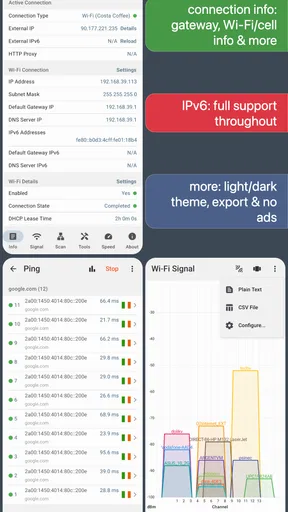
- Accurate Wi-Fi signal strength readings.
- Offers port scanning capabilities.
- No ads for an uninterrupted experience.
Limitations of Network Analyzer Pro
- Limited advanced features for experts.
- Requires purchase for full functionality.
- Occasional crashes on older devices.
- No dark mode available.
- Limited support for some router models.
Similar Picks in This Category
View All
Google LLC4.0

Gboard - the Google Keyboard
Google LLC4.5

Google Play services
Google LLC4.3

Google Play Store
Google LLC4.9

Files by Google
Google LLC4.5

SHAREit: Transfer, Share Files
Smart Media4U Technology Pte.Ltd.4.3
Frequently Asked Questions
What features does Network Analyzer Pro offer?
Network Analyzer Pro provides a comprehensive suite of tools for network diagnostics, including Wi-Fi signal measurement, LAN scanning, and internet speed testing. It also offers detailed information about network devices, DNS lookup, and traceroute functionality. This makes it an excellent choice for both casual users and IT professionals.
Is Network Analyzer Pro user-friendly for beginners?
Yes, Network Analyzer Pro is designed with an intuitive interface that caters to both beginners and advanced users. It offers clear instructions and easy navigation, allowing users to quickly access and utilize its various features without needing extensive technical knowledge.
Does Network Analyzer Pro require an internet connection to work?
While some features, like internet speed tests, require a connection, many others, such as LAN scanning and Wi-Fi signal strength measurement, can be used offline. This flexibility allows users to troubleshoot network issues even when internet access is unavailable.
Is Network Analyzer Pro available for both Android and iOS devices?
Yes, Network Analyzer Pro is available for download on both Android and iOS platforms. This ensures that users can enjoy its robust network diagnostic features regardless of their device preference, making it a versatile tool for a wide audience.
Does Network Analyzer Pro offer continuous updates and support?
Network Analyzer Pro is regularly updated to ensure compatibility with the latest devices and operating systems. The developers also provide ongoing support to address any user issues, ensuring that the application remains reliable and effective for all users.
